
How I Hacked My Exide Inverter into a Smart Home Device
Date: January 8, 2026 | Location: India
Let’s be honest: in 2026, getting up from the couch to flip a switch feels archaic. I have a smart home setup—lights, fans, the works—but my Exide GPQ 1450 Inverter was the dumbest device in the house. It had a physical button, no remote, and definitely no Wi-Fi.
So, I decided to perform surgery on it. I took a standard Wi-Fi automation kit (from Robo Way), hacked the inverter’s motherboard, and now I can say, “Hey Google, turn on the inverter,” or control it via Bluetooth even when the Wi-Fi is down.
Here is exactly how I did it, the challenges I faced, and how you can replicate it—if you are brave enough.
CRITICAL WARNING & DISCLAIMER
Proceed at your own risk. Opening your inverter and modifying the PCB involves working with high voltage components. This process WILL VOID YOUR WARRANTY and carries a significant risk of electric shock, fire, or permanent damage to your inverter if done incorrectly.
Always ensure the main power is disconnected and battery cables are removed before starting. If you are not comfortable with electronics and soldering, DO NOT attempt this modification.
The Problem: “Normally Closed” Logic
Most appliances work on “Normally Open” logic (you press a button, circuit closes, device turns on). The Exide GPQ 1450 is unique. After 5–6 hours of testing with a multimeter, I realized the front panel button works in reverse:
- Circuit Closed (Wires touching): Inverter stays OFF.
- Circuit Open (Wires separated): Inverter turns ON.
This meant I couldn’t just solder wires to the existing button. I had to interrupt the circuit permanently and let my smart relay manage the connection.
The Modification Process
1. The “Surgery” (Cutting the PCB)
This was the point of no return. I opened the front panel to access the PCB (Printed Circuit Board). Since the button logic was reversed, I had to physically cut the copper tracks on the PCB that connected the button to the system. I severed the connection at the P03 point (check your specific board traces carefully). By cutting this, I essentially “broke” the physical button’s control.
2. Wiring the Smart Relay (The Dual-Logic Trick)
I used a Wi-Fi/Bluetooth Smart Relay module. I powered it directly by tapping into the inverter’s 12V battery input. Because the inverter logic is weird, I had to wire the relay to do two opposite things at once: control the power and control the LED indicator.
Why? The inverter needs the circuit closed to stay OFF. When I trigger the smart app to “On,” the relay clicks, opens the circuit, and the inverter powers up.
The Magic: When the smart relay turns on, it opens the NC port (turning the inverter on) and simultaneously closes the NO port. This sends power to the LED. So now, Inverter ON = LED ON, just like factory.
3. Adding a New Physical Button
Since I disabled the original button on the PCB, I needed a manual backup. I drilled a hole in the casing and added a momentary push-button connected to the smart module’s manual switch inputs.
The Features: Why I Did This
Once I closed everything up (carefully insulating the module so it doesn’t short out inside the metal casing), the results were awesome:
- Voice Control: It integrates perfectly with Google Home. I just speak to my phone, and the inverter toggles.
- The “Bluetooth Savior” Mode: This is critical. If the power goes out, Wi-Fi usually dies. The module I used has Bluetooth backup. I can still connect via my phone and turn the inverter on without internet.
- Visual Feedback: Thanks to that extra wire on the NO terminal, the LED glows perfectly when the system is live.
Go ahead, make it smart. Just don’t blame me if you zap yourself!
Parts Required for the Build


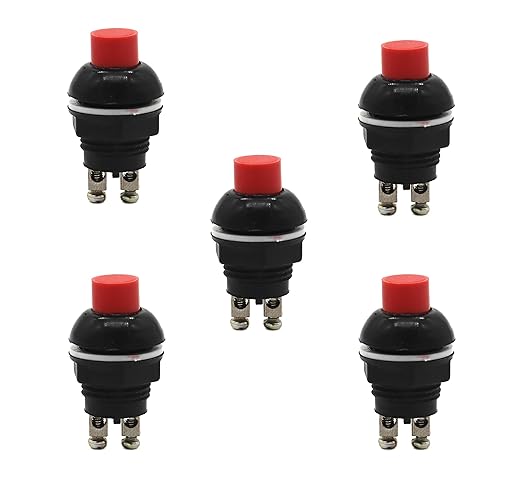


Disclaimer: Product images are illustrative representations. Prices noted as “High” or “Cheap” were accurate relative to local options at the time of writing.


Share this:

Discover more from Dostified
Subscribe to get the latest posts sent to your email.


